Delete Google Try-On Photos: Original, Recently Tried and Saved Images
Updated November 7, 2026
Delete Google Try-On photos before lending a device
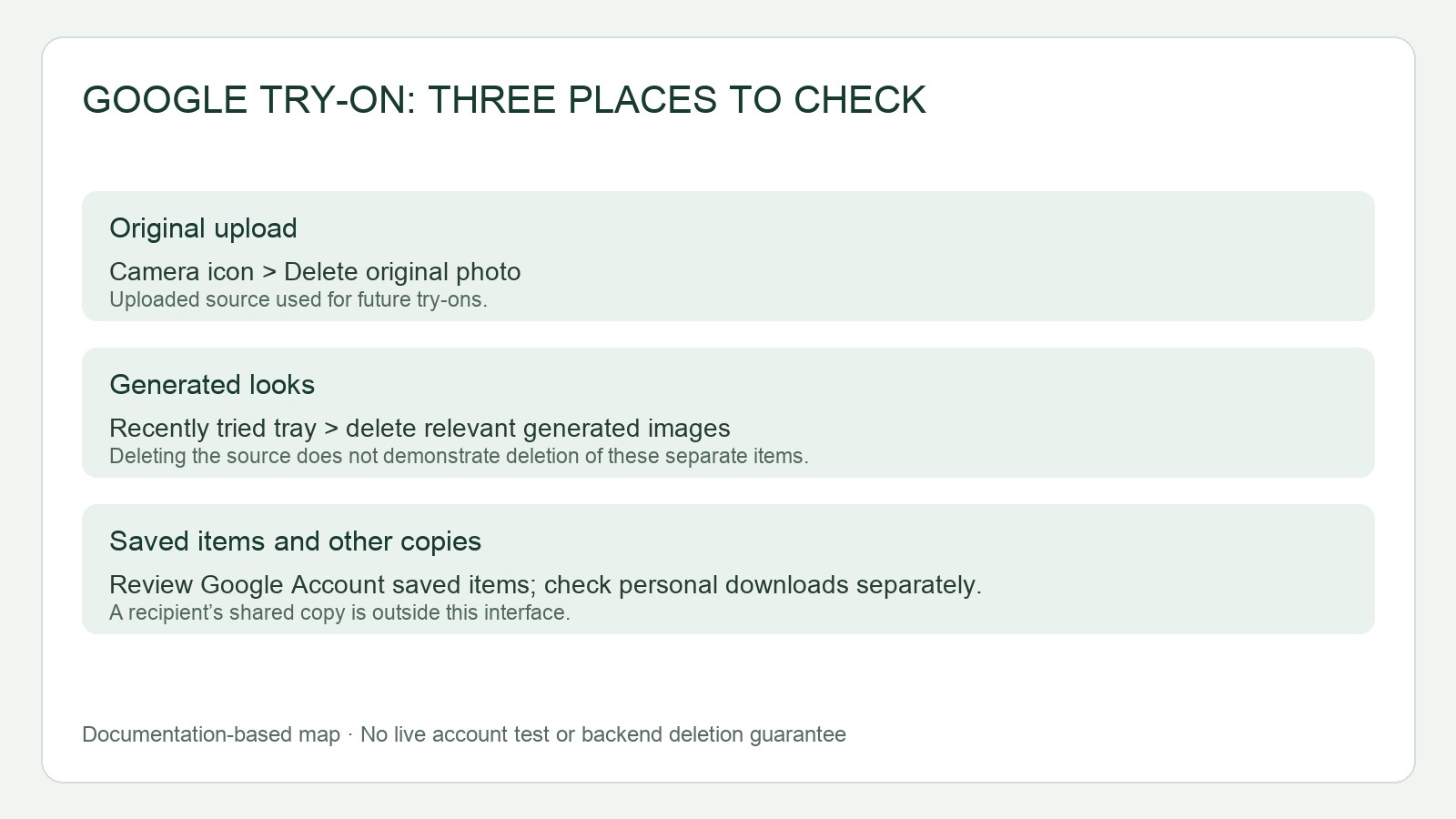
If you are replacing an old uploaded portrait, treat the original upload, generated try-ons, Google Account Saved items, and copies you shared as separate cleanup jobs. Delete the original through the Try-On camera control, remove generated images from Recently tried, check Saved items separately, and review downloads or recipient copies that remain under your control. Deleting the original alone does not prove that every generated or shared copy is gone.
Confirm the account before changing anything
Open Google Shopping while signed in to the Google Account that may contain the portrait. Check the account menu’s email or profile information and confirm it is the account you used for the upload; if another account is active, switch first. On a shared device, confirm this before looking for the photo.
Only upload a photo you own or have permission to use, and do not use photos of children. The original uploaded photo is saved for reuse, so replacement begins by removing that saved original rather than only deleting a generated outfit image.
Delete the original uploaded photo
In Google Shopping’s Try-On area, select the camera icon in the upper-right corner, choose Delete original photo, and follow any confirmation shown. Google Shopping Help identifies this control as the way to remove the original upload. Once completed, this removes the original that had been saved for reuse.
Keep the scope narrow: this action removes the original. It does not by itself establish that generated try-ons were removed from Recently tried, that an image was removed from Google Account Saved items, or that a copy sent to someone else disappeared. It is also not a promise of an immediate backend purge or account-wide purge.
Remove generated try-ons from Recently tried
Open the Recently tried tray and delete each generated try-on that shows the old portrait or a result you no longer want. Generated try-ons can be deleted from this tray, which is separate from the camera-icon control for the original upload. Do not treat deleting the original as a substitute for checking this tray: a generated image may need its own deletion there.
If you are unsure whether an item is the original upload or a generated try-on, use the location-specific actions below rather than assuming one deletion covers both.
Check Saved items and other copies separately
Photos associated with the activity may also appear under Google Account > Saved items. Open Google’s Saved items page for that account, identify the relevant photo entries, and remove them there. Then check your device’s Downloads folder, files you deliberately saved, and any messages or storage locations where you sent an image. Ask recipients to delete copies they received. The first three locations below are Google-provided photo locations; the rest depend on copies you or others control.
| Location | User action | What the action does not prove |
|---|---|---|
| Original upload in Try-On | Camera icon, upper right > Delete original photo | That generated, saved, downloaded, or shared copies are gone |
| Generated try-ons | Recently tried tray > delete the relevant image | That Saved items or copies held by recipients are gone |
| Google Account Saved items | Open Saved items and delete the relevant photo entry | That local downloads or recipient copies are gone |
Run a proposed pre-lending check
The following is a proposed user check, not a test performed on a Google account. Suppose you uploaded one portrait, generated two try-ons, saved one result to Saved items, downloaded another, and sent a copy to another person. A complete cleanup would include confirming the signed-in email; deleting the original through the camera icon; deleting both generated images in Recently tried; removing the saved photo entry; deleting the local download; and asking the recipient to remove their copy.
Before handing over the device, reopen the Try-On camera area, Recently tried, and Google Account Saved items while signed in to the same account, then check the device’s download location. If an item is still visible, use the action for that location rather than assuming a deletion elsewhere removed it. This check verifies the locations you can access; it cannot verify deletion from a recipient’s account or promise that shared copies will delete automatically.
If the button or control is missing
Try-On eligibility requires being 18 or older, signed in, located in one of the 18 regions listed by Google, and having both Search Services History and Personalized Recommendations turned on. Google Shopping Help also notes that settings are being updated. If the camera icon or delete option is missing, check that you are in the same signed-in account and the Try-On interface rather than an ordinary image preview. Google’s help page lists current feature eligibility and notes that settings are changing; consult it before changing account preferences. The absence of a button is not proof that a particular photo still exists.
Two product limits are separate from deletion: Lingerie, bathing suits, and accessories are not supported, and Try-On is not available on Sponsored Shopping Ads. Generated images also do not guarantee that an item will fit the selected size. For the lending task, those limits do not replace the location-by-location cleanup above.
Continue with the next task
- Product photography and editing resources
- Fashion and model workflow resources
- Review model reference continuity
Sources and scope
Documentation checked November 7, 2026. Rewarx is the publisher. Covers are MiniMax-generated editorial concepts. Worked examples and diagrams are instructional illustrations, not measured products, tool output comparisons or customer results. Procedures are documentation-based; no live shopping transaction or hands-on software benchmark is claimed.